Back to module list
DoliPhone VoIP
WebRTC softphone integrated in Dolibarr for making and receiving VoIP calls directly from the browser.
What it does
DoliPhone integrates a WebRTC-based SIP phone within Dolibarr, allowing making and receiving calls without leaving the application.
How it works
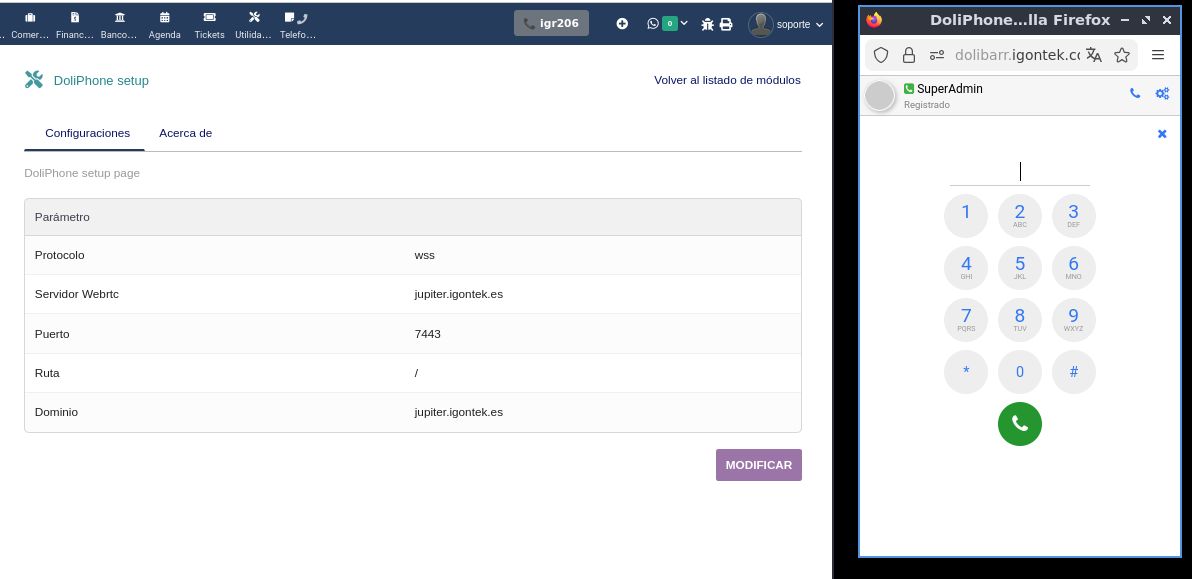
- Configure the WebRTC server: protocol (WSS), server, port, path and domain
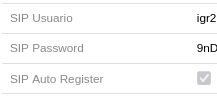
- Each user has SIP credentials (username, password, auto-register) in the users table
- On login, the softphone automatically registers with the PBX
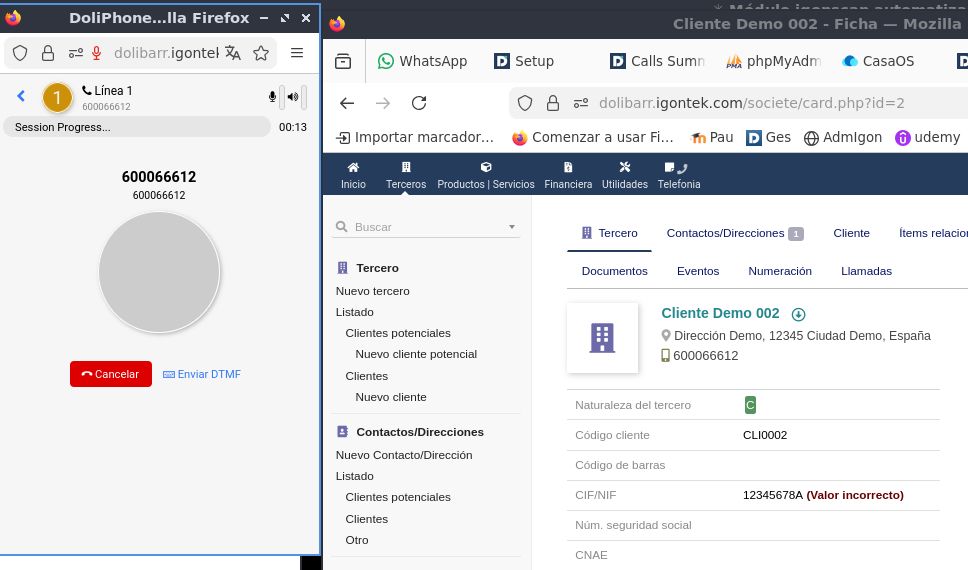
- To call, dial the number on the softphone keypad embedded in the browser
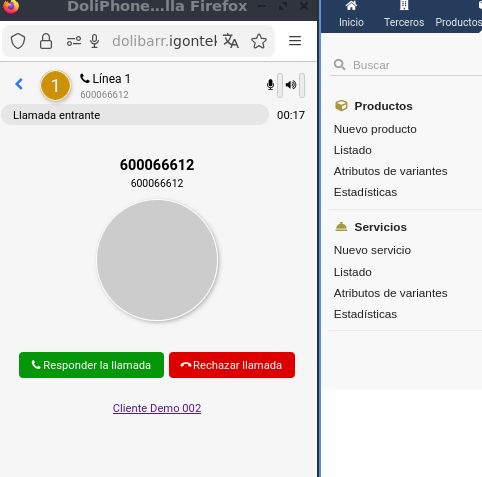
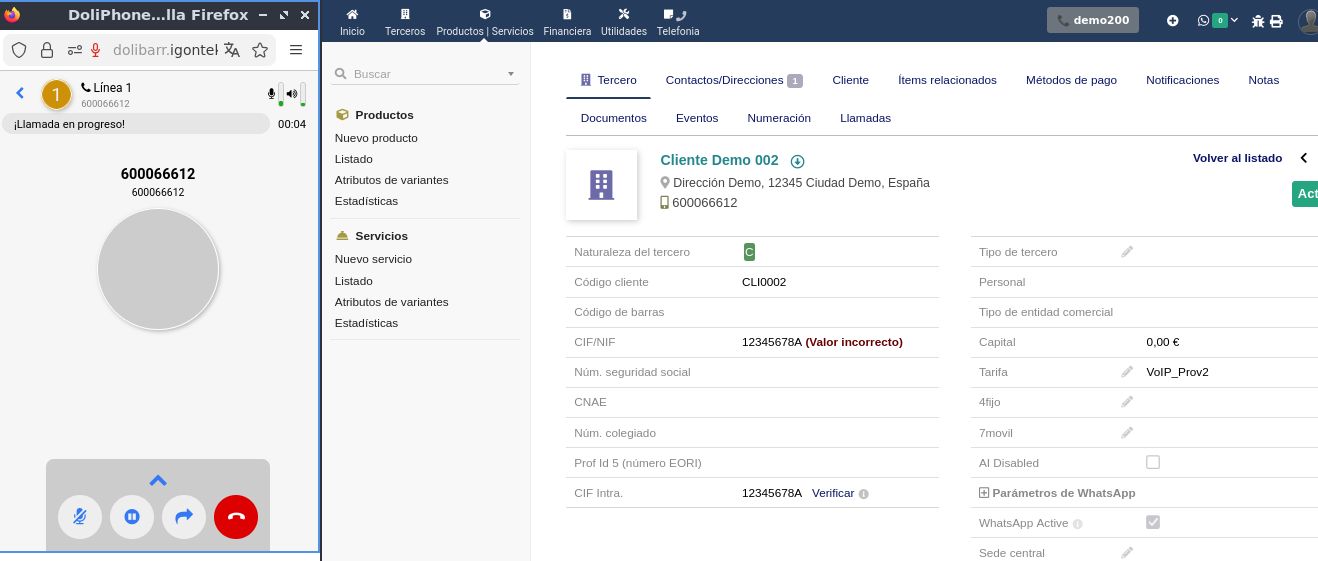
- On incoming call, identifies the third party by number and shows answer/reject buttons
- After answering, clicking on the identified third party opens their record in Dolibarr
- From any third party's record, you can make a call by clicking on their phone number
- During the call, controls are available: mute, hold, transfer and hang up
- If recording is enabled in the softphone configuration, calls are recorded and saved
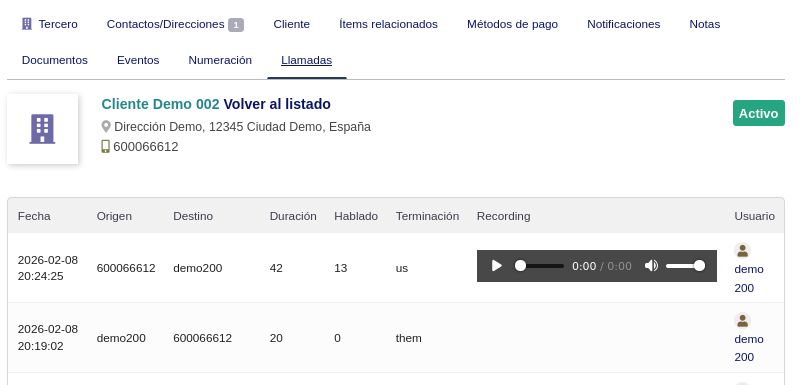
- On hang up, the call is logged in the "Calls" tab of the third party, the user and Utilities / CDR
- Recordings can be played back from the "Calls" tab in third parties, users and Utilities / CDR
Benefits
- Direct calls without external applications or physical phones
- Call history linked to CRM (third parties and users)
- Automatic third party identification by phone number
- Direct access to the third party record by clicking during the call
- Outgoing call with one click from the third party's phone number
- Call recording from the softphone with player in Dolibarr
- Real-time status indicator (registered, ringing, on call)
- Compatible with any Asterisk PBX with WebSocket
- Complete CDR logging: date, duration, talk time, termination
Technical sheet
Provides a WebRTC phone embedded in the browser with automatic third party identification, click-to-call from the third party record, call recording and complete CDR logging in third parties, users and Utilities / CDR.
Base configuration
- Define WebRTC server: protocol (WSS), server, port, path and domain.
- Assign individual SIP credentials (username, password, auto-register) to each user.
- Configure desktop notifications and ringing rules.
- Enable call recording from the softphone configuration.
Variables and parameters
- Individual SIP credentials per user (username, password, auto-register).
- WebRTC server parameters (protocol, server, port, path, domain).
- Automatic record opening mode on incoming or outgoing call.
Recommended flow
- Administrator configures WebRTC server parameters and SIP credentials for each user.
- User logs in and the softphone automatically registers with the PBX.
- To call, dial on the softphone or click the phone number from the third party's record.
- When receiving an incoming call, the third party is identified with answer/reject options.
- After answering, clicking on the identified third party opens their record in Dolibarr.
- During the call, the user can mute, hold, transfer or hang up.
- If recording is enabled in the softphone, the audio is stored in Dolibarr.
- On hang up, the call is logged in the "Calls" tab of the third party, the user and Utilities / CDR.
- Recordings can be played back from the "Calls" tab in any of those sections.
Screenshots
Try DoliPhone in our demo
Access the demo
Log in with demo.200 / demo.200 or demo.201 / demo.201